
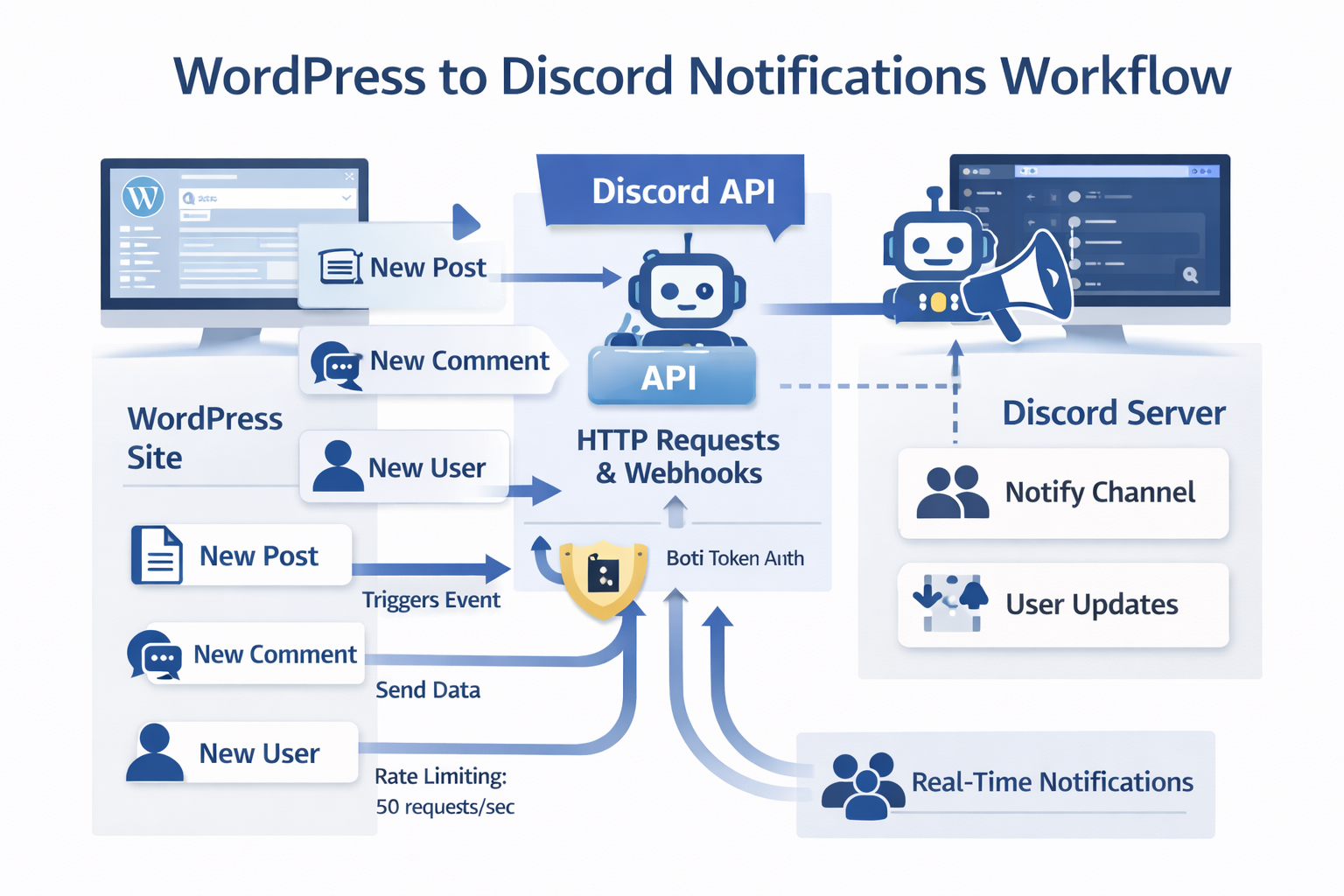
Discord Notifications API WordPress Made Easy Setup
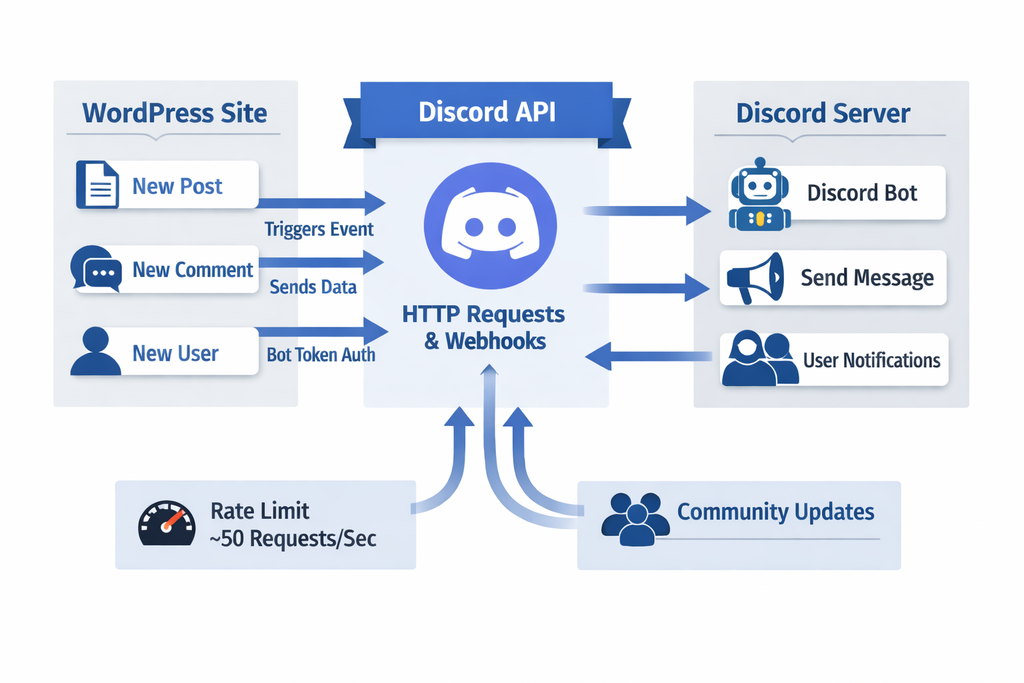
Discord Notifications for WordPress is an efficient way to enhance your website’s community engagement and user experience by integrating Discord’s robust notification system with your WordPress site. By doing so, you can create a more interactive and immersive experience for your users, keeping them informed about updates, new content, and other important events on your website. In this tutorial, we will explore the process of setting up Discord notifications for your WordPress site using the Discord API, a powerful tool that allows developers to tap into the Discord ecosystem and create custom integrations.
What is Setup Discord Notifications for WordPress
Setup Discord Notifications for WordPress refers to the process of integrating Discord’s notification system with your WordPress site, allowing you to send custom notifications to your users on Discord. This integration can be achieved through the use of the Discord API, which provides a set of endpoints and tools for developers to create custom Discord integrations. By setting up Discord notifications for your WordPress site, you can create a more engaging and interactive experience for your users, keeping them informed about updates, new content, and other important events on your website.
Why Setup Discord Notifications for WordPress Matters
Setup Discord Notifications for WordPress matters because it allows you to create a more immersive and interactive experience for your users. By integrating Discord’s notification system with your WordPress site, you can keep your users informed about updates, new content, and other important events on your website, fostering a sense of community and engagement. Additionally, Setup Discord Notifications for WordPress can help you to increase user retention, as users are more likely to return to your website if they feel engaged and informed. Furthermore, Setup Discord Notifications for WordPress can also help you to improve your website’s user experience, as users can receive notifications about new content and updates, making it easier for them to stay up-to-date with your website’s latest developments.
How to Setup Discord Notifications for WordPress Step by Step
To setup Discord notifications for your WordPress site, follow these steps:
- Create a Discord Developer Account: To start, you need to create a Discord Developer Account, which will give you access to the Discord API and allow you to create custom integrations.
- Create a Discord Application: Once you have created your Discord Developer Account, you need to create a Discord Application, which will serve as the foundation for your custom integration.
- Obtain Your Discord API Token: After creating your Discord Application, you need to obtain your Discord API Token, which will be used to authenticate your API requests.
- Install the Required WordPress Plugin: To integrate Discord with your WordPress site, you need to install a WordPress plugin that supports Discord integration, such as the Discord WordPress Plugin.
- Configure the Plugin: Once you have installed the plugin, you need to configure it by entering your Discord API Token and setting up the notification options.
Setup Discord Notifications for WordPress Best Practices
When setting up Discord notifications for your WordPress site, there are several best practices to keep in mind. First, make sure to test your notifications thoroughly to ensure that they are working as expected. Second, customize your notifications to fit your brand’s voice and style, making sure that they are consistent with your website’s tone and personality. Third, use Discord’s notification system to keep your users informed about updates, new content, and other important events on your website, fostering a sense of community and engagement. Finally, make sure to comply with Discord’s API Terms of Service and usage guidelines to avoid any issues or restrictions.
Common Mistakes with Setup Discord Notifications for WordPress
When setting up Discord notifications for your WordPress site, there are several common mistakes to avoid. First, make sure to enter your Discord API Token correctly, as an incorrect token can prevent your notifications from working. Second, ensure that you have installed the correct WordPress plugin and configured it properly, as an incorrect or incomplete configuration can prevent your notifications from working. Third, test your notifications thoroughly to ensure that they are working as expected, as undetected issues can lead to a poor user experience.
Setup Discord Notifications for WordPress Tools and Resources
There are several tools and resources available to help you setup Discord notifications for your WordPress site. The official Discord API Documentation provides a comprehensive guide to the Discord API, including endpoints, parameters, and examples. Additionally, the Discord WordPress Plugin provides a simple and easy-to-use solution for integrating Discord with your WordPress site. Finally, the Discord Community provides a supportive and knowledgeable community of developers and users who can help you with any questions or issues you may have.
Conclusion
In conclusion, setting up Discord notifications for your WordPress site is a straightforward process that can enhance your website’s community engagement and user experience. By following the steps outlined in this tutorial and keeping in mind the best practices and common mistakes to avoid, you can create a more interactive and immersive experience for your users, keeping them informed about updates, new content, and other important events on your website.
Frequently Asked Questions
Q: What is the Discord API and how does it work? The Discord API is a set of endpoints and tools that allow developers to create custom integrations with the Discord ecosystem. It works by providing a set of API endpoints that can be used to interact with Discord’s servers, allowing developers to create custom applications and integrations.
Q: How do I obtain my Discord API Token? To obtain your Discord API Token, you need to create a Discord Developer Account and create a Discord Application. Once you have created your application, you can obtain your API Token by going to the application’s settings page and clicking on the ‘Token’ tab.
Q: What are the benefits of setting up Discord notifications for my WordPress site? The benefits of setting up Discord notifications for your WordPress site include creating a more interactive and immersive experience for your users, keeping them informed about updates, new content, and other important events on your website, and fostering a sense of community and engagement.

You must be logged in to post a comment.